
How to export your
Apple Music History.
Apple allows you to download a complete archive of your media activity. Here is how to request your data and get the specific files needed for lifetime analytics.
Open the Apple Privacy Portal
Log in to Apple’s privacy dashboard to request a copy of your data. This is where you manage your global account exports.
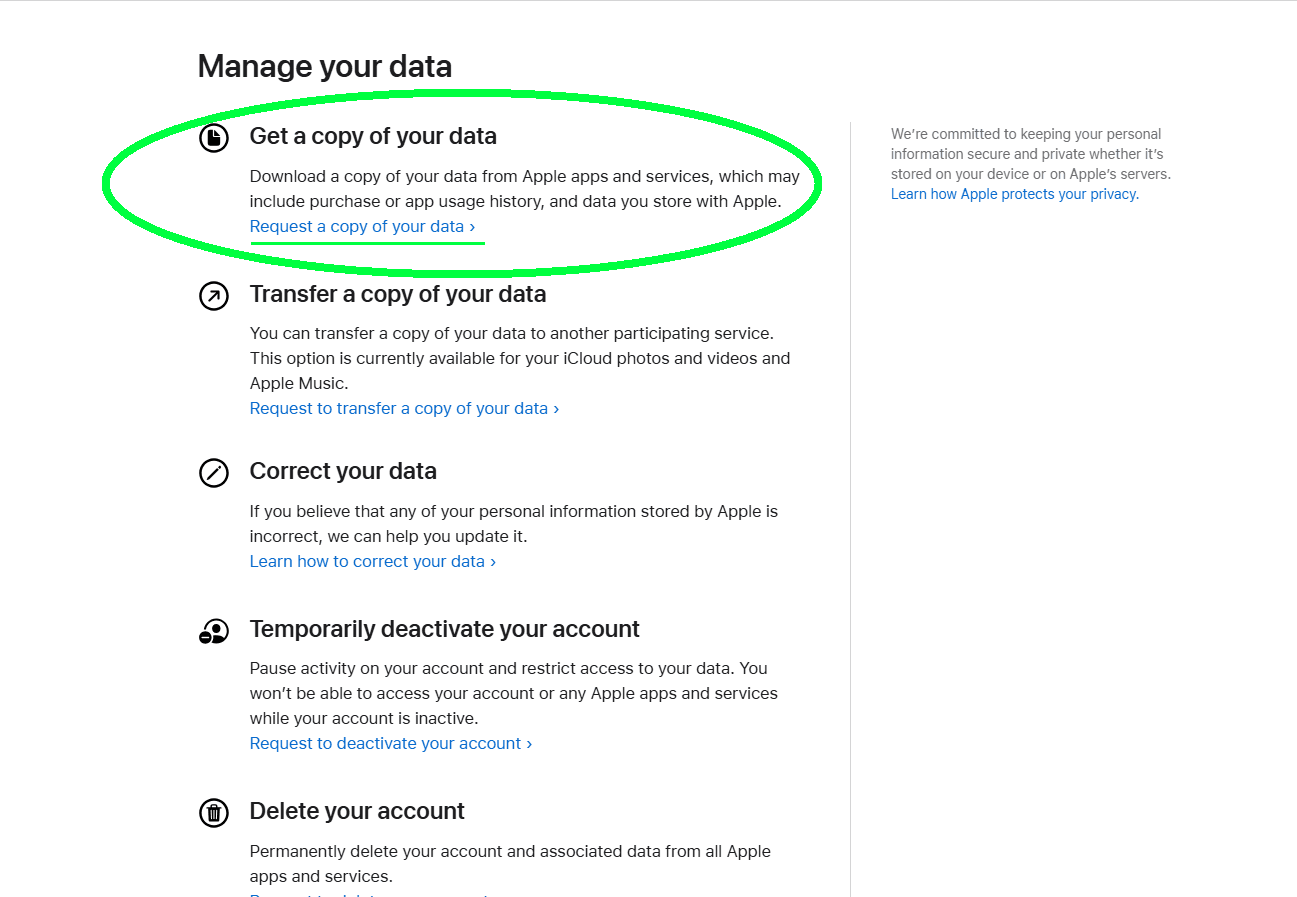
Open privacy.apple.comRequest a copy of your data
Under the "Get a copy of your data" section, click the link to start the request process.
Select "Apple Media Services"
In the list, select Apple Media Services Information. This is the only category needed for your listening history.
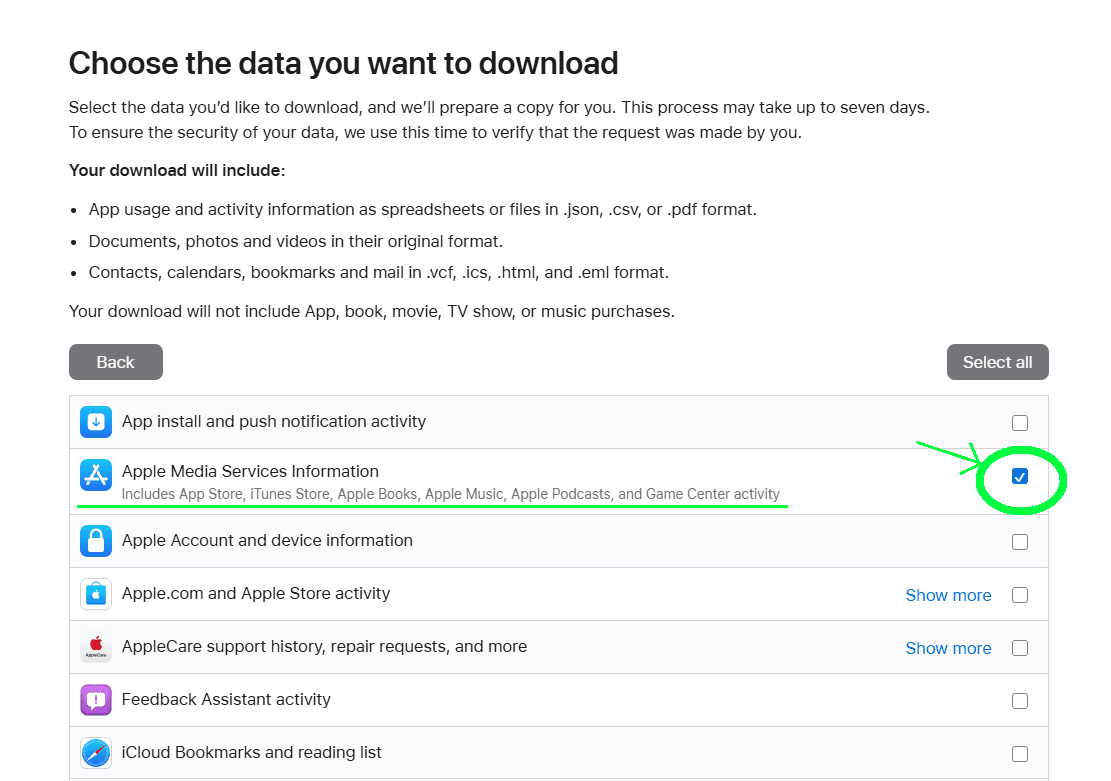
Heads up: Apple bundles other media services here (App Store, Game Center, etc.). That’s normal—mystats.music will only use your Apple Music play history.
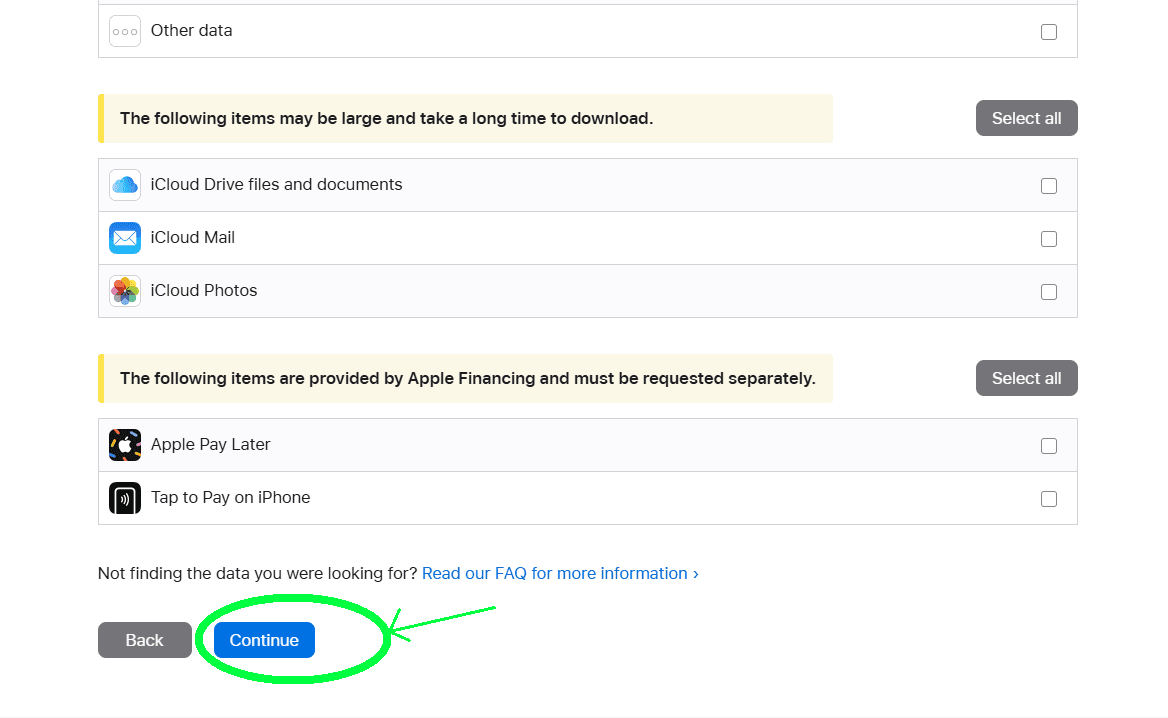
After selecting it, scroll to the bottom and click Continue.
Choose a maximum file size
Apple will ask for a maximum file size. Keep the default (usually 1GB). This does not change your history; it only controls if Apple splits the export into multiple ZIP parts.
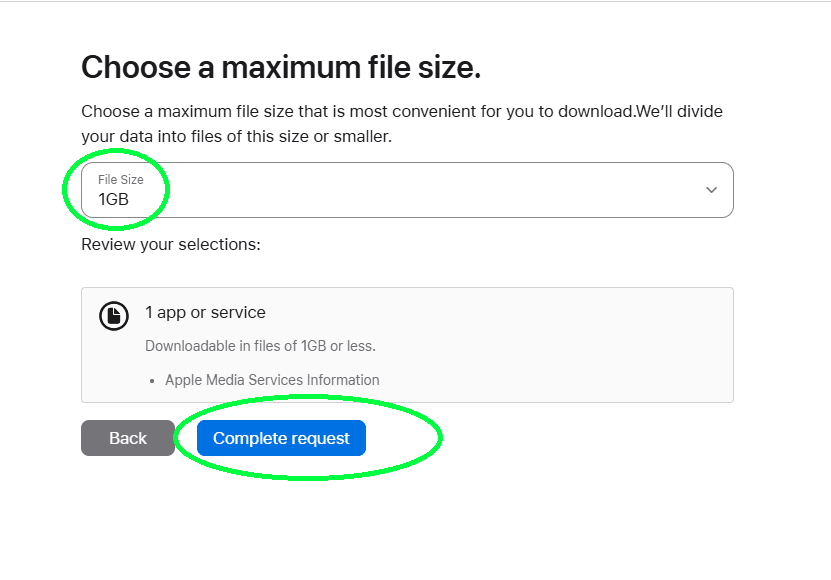
Complete the request
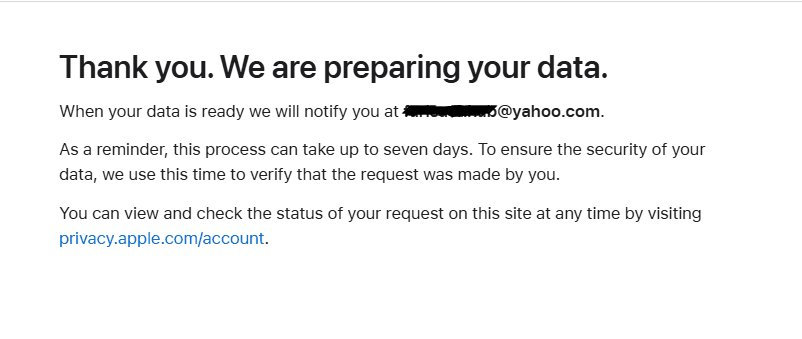
Estimated time: up to 7 days.
Apple will email you when your export is ready. If you don’t receive an email after 6–7 days, check the status manually at privacy.apple.com/account (and check Spam/Junk).
Check status & download when ready
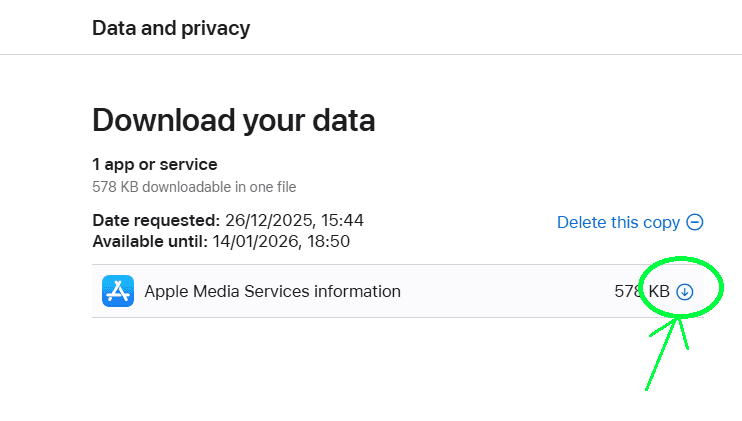
When it’s ready, you can download it from the link in the email or from your data requests page:
privacy.apple.com/account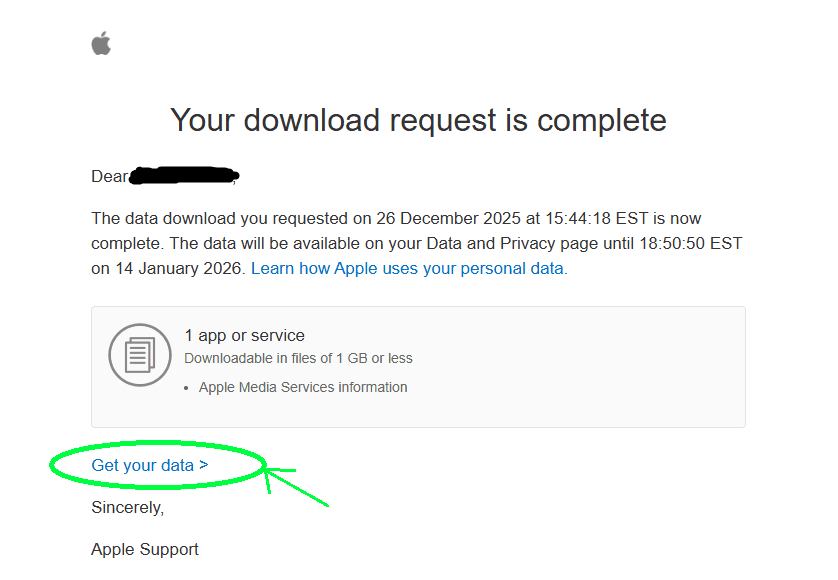
Download all ZIP parts
Your export may be split into multiple downloads (example: Part 1 of 2). Download every ZIP part you see.
Upload to mystats.music
Come back to the app and drop all downloaded ZIP files into the uploader. We handle the rest.
Optional: If you prefer to upload only the data file, find:
Apple Music - Play History Daily Tracks.csv (inside “Apple Music Activity”)
Ready to analyze?
Drop your ZIP files into our secure browser parser to see your stats instantly.
Upload to mystats.music