
How to export your Spotify
Extended Streaming History.
Most users accidentally download the wrong file. Here is how to get your complete lifetime listening data in JSON format for analysis.
Open the Privacy Page
Log in to your Spotify account and navigate to the privacy settings page. This is a special dashboard hidden deep in the account settings.
Go to Spotify Privacy SettingsSelect "Extended streaming history"
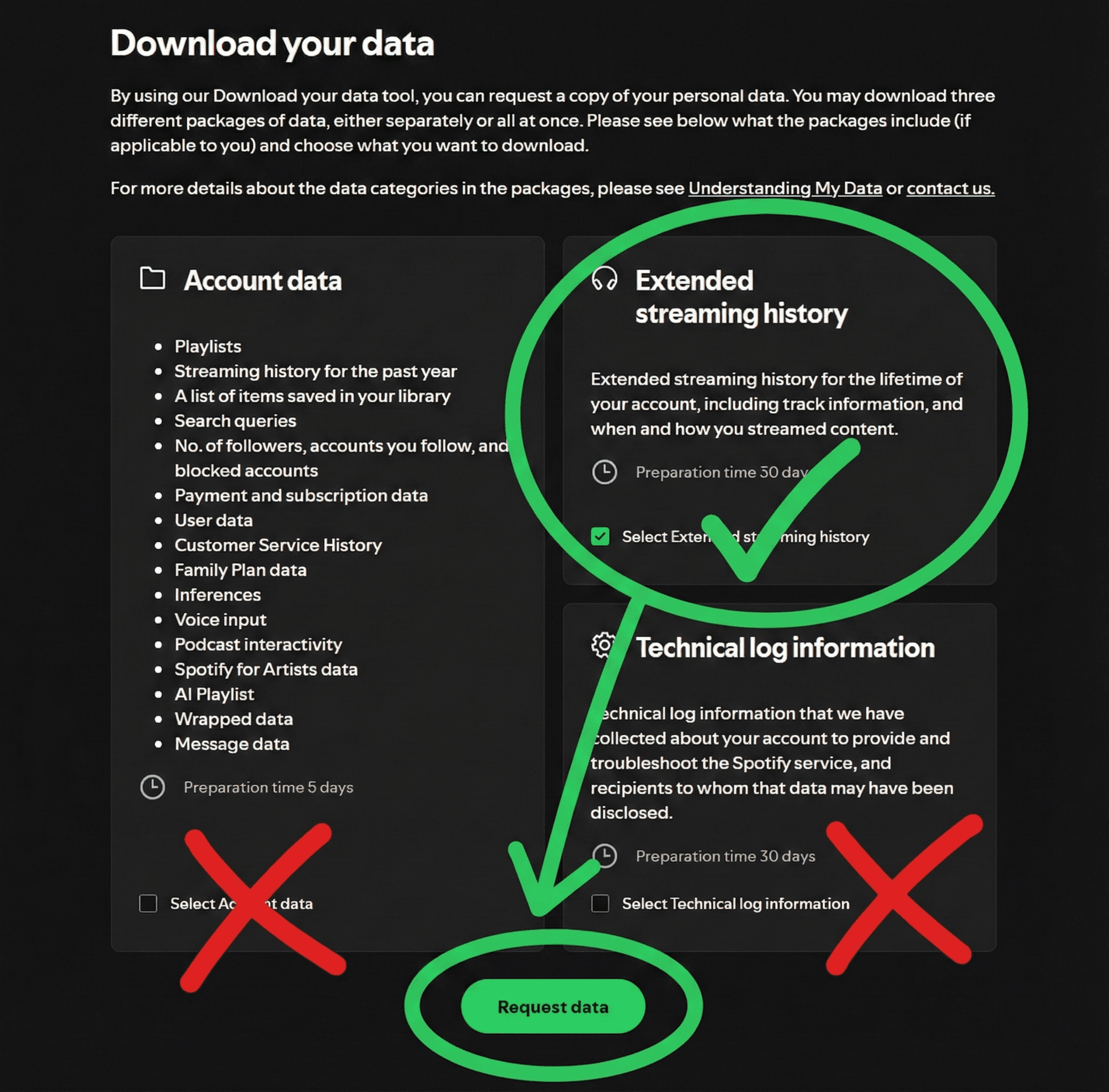
Scroll down to the Download your data section. This step is critical:
- Untick "Account data" (This only gives you 1 year of history).
- Untick "Technical log information".
- Tick ONLY "Extended streaming history".
Confirm via Email
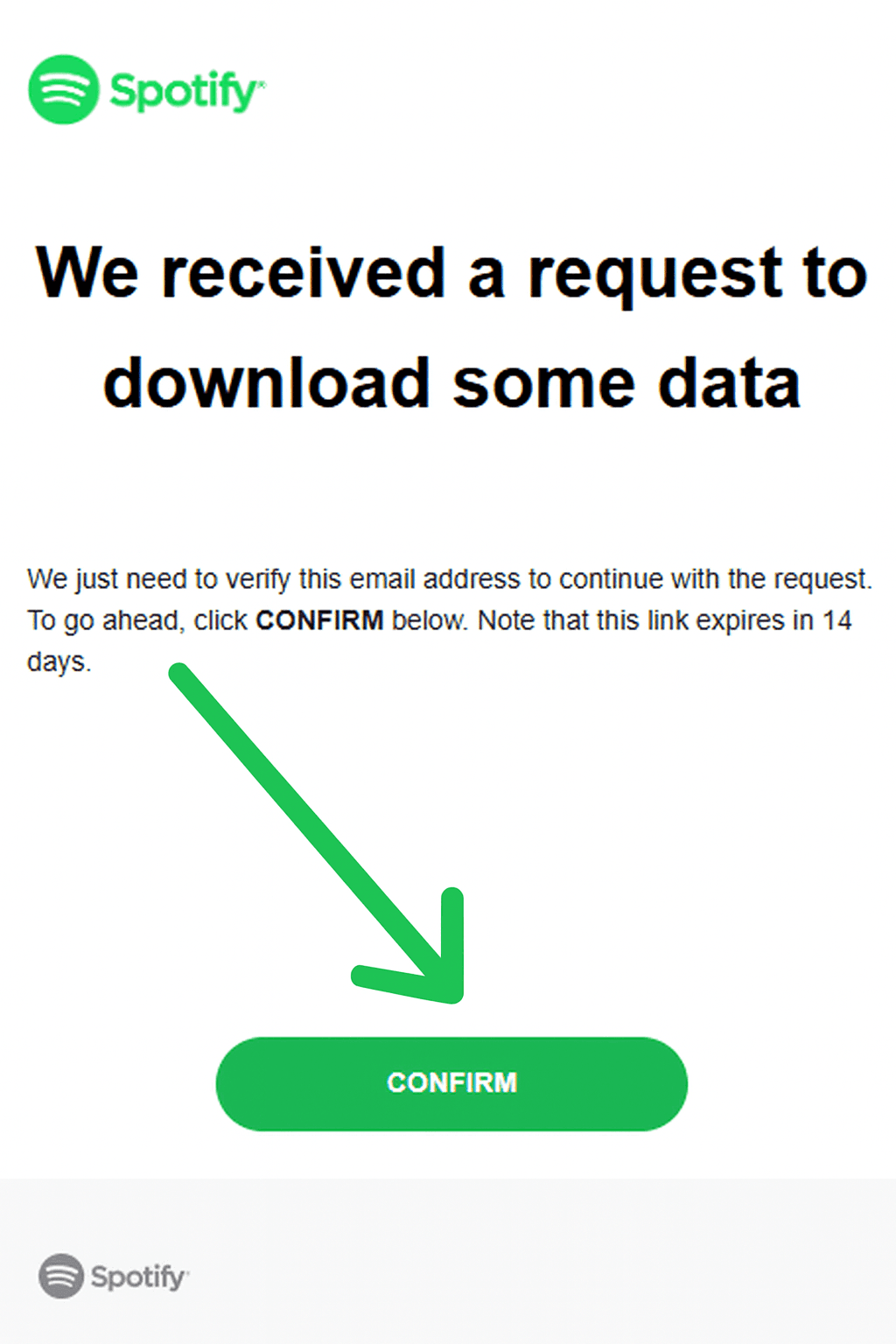
Spotify will send an email to verify it's really you. You must click the green Confirm button in that email to start the process.
Wait for the Data
Estimated time: Usually 1–5 days.
Spotify officially says "up to 30 days," but most of our users report receiving the email as soon as the next day.
"Trust us — seeing your entire lifetime of music history is absolutely worth the wait."
Download the ZIP
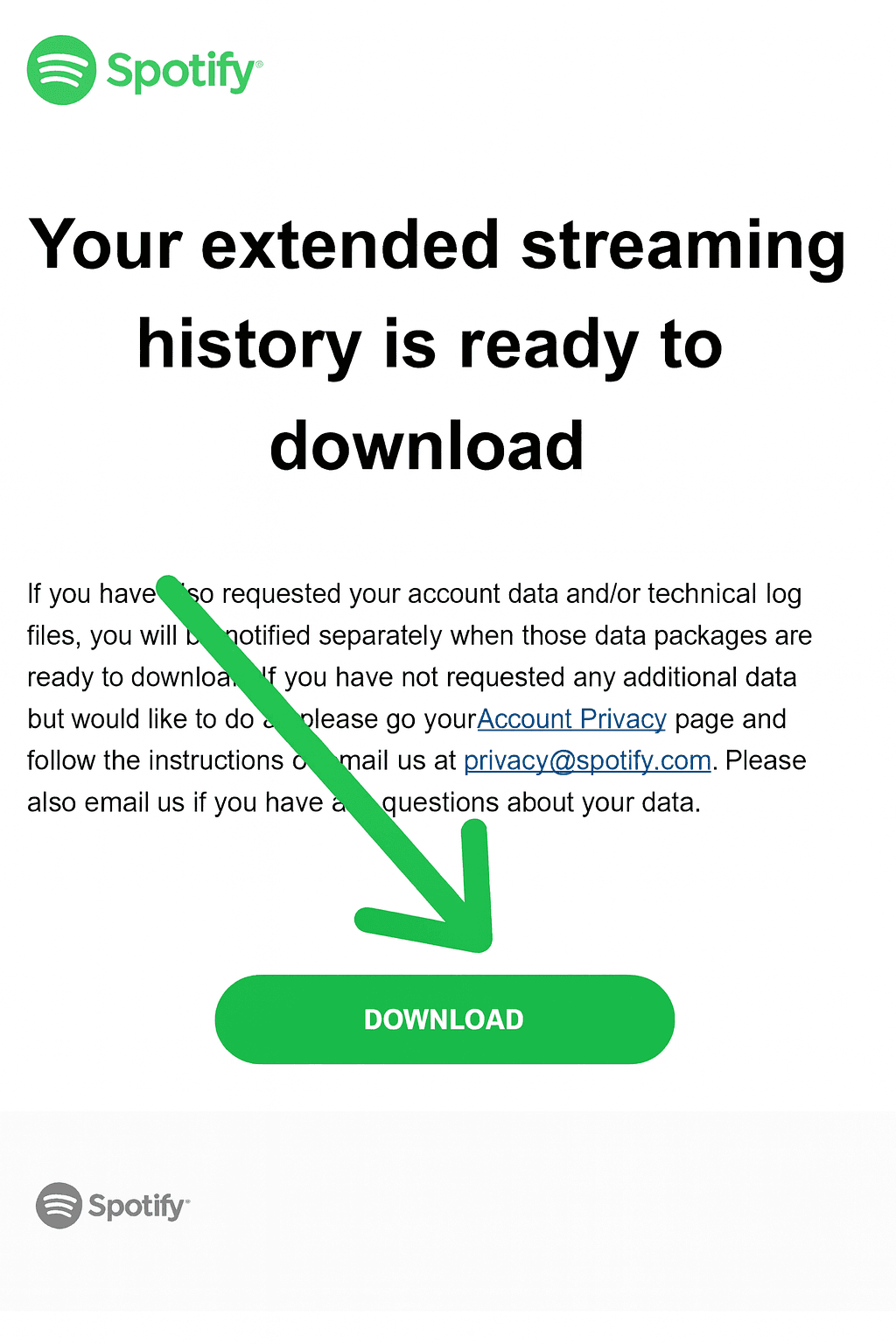
Once ready, you will get a second email with a "Download" link. Save the .zip file to your computer or phone.
Already have your ZIP file?
Drop it into our secure browser parser to see your stats instantly.
Upload to mystats.music